GraphQL
The GraphQL API language enables very fast, precise and flexible data queries. It allows users to request and retrieve only the required data, improving efficiency and reducing overhead. GraphQL supports exploring relationships, filtering datasets, and retrieving nested information directly from inorigo®.
Overview
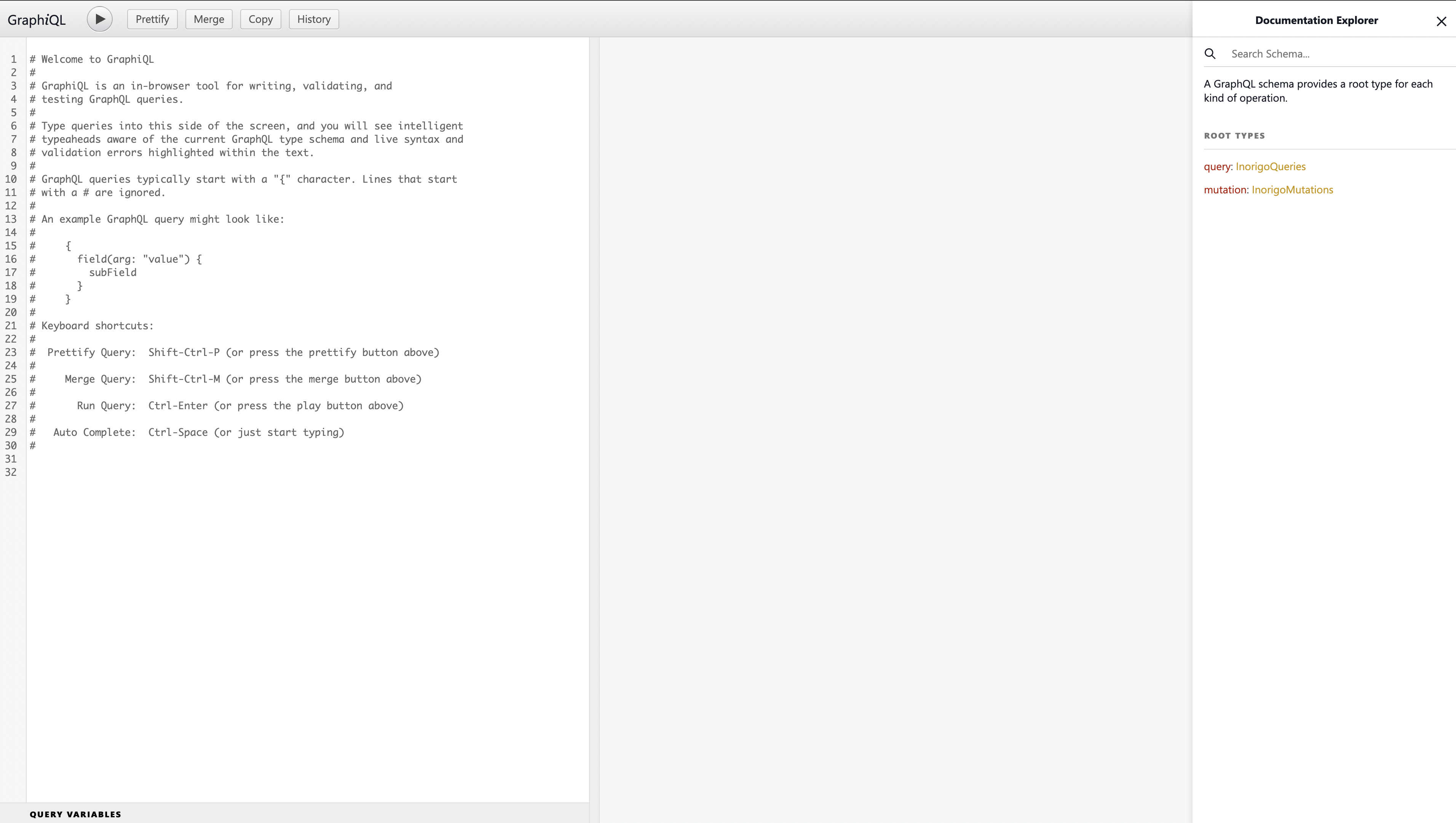
With the GraphQL interface you can write queries and get help with live syntax and validation errors highlighted within the text.
The inorigo® adaptation of the web service makes it possible to retrieve virtually anything, like taxonomies, metadata or attribute properties from the metagraph model.
The query language simplifies data access and helps optimize performance, supporting the development and integration of advanced solutions.
GraphQL is an in-browser tool for writing, validating, and testing GraphQL queries. GraphQL and GraphQL documentation can be found under the Launcher Menu.
The minimum inorigo® version for GraphQL is 22.4.0
A GraphQL example
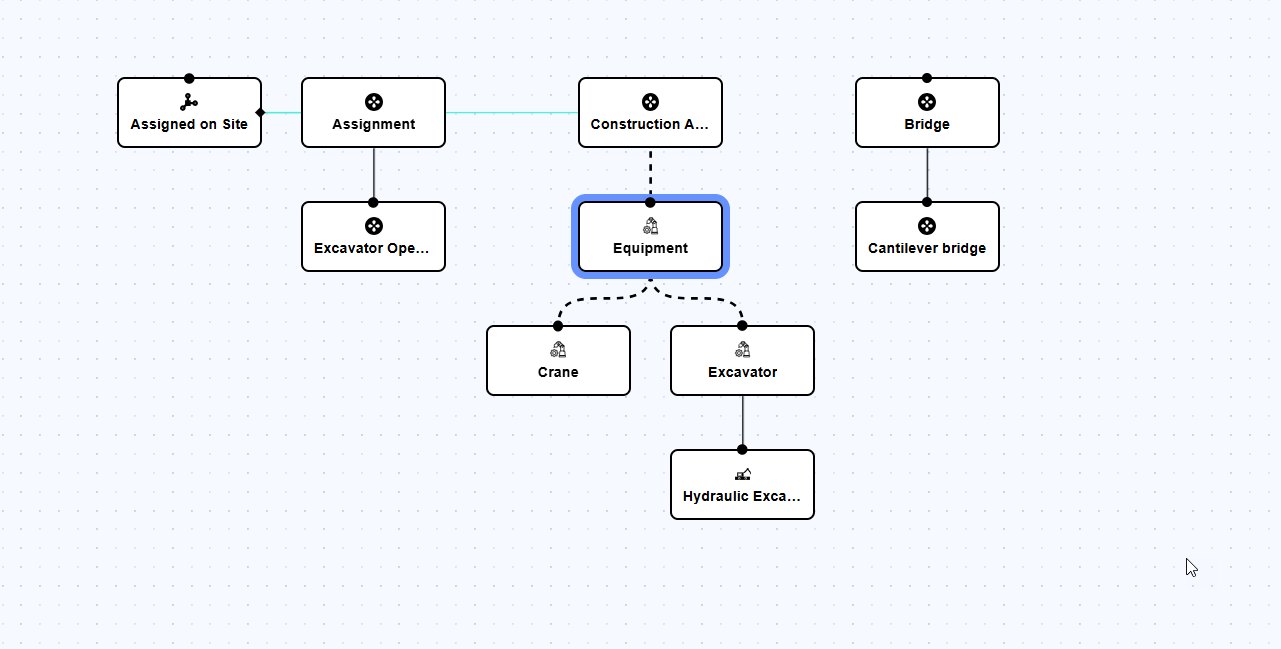
You want to query the database to fetch all construction equipment and its children as in the picture.
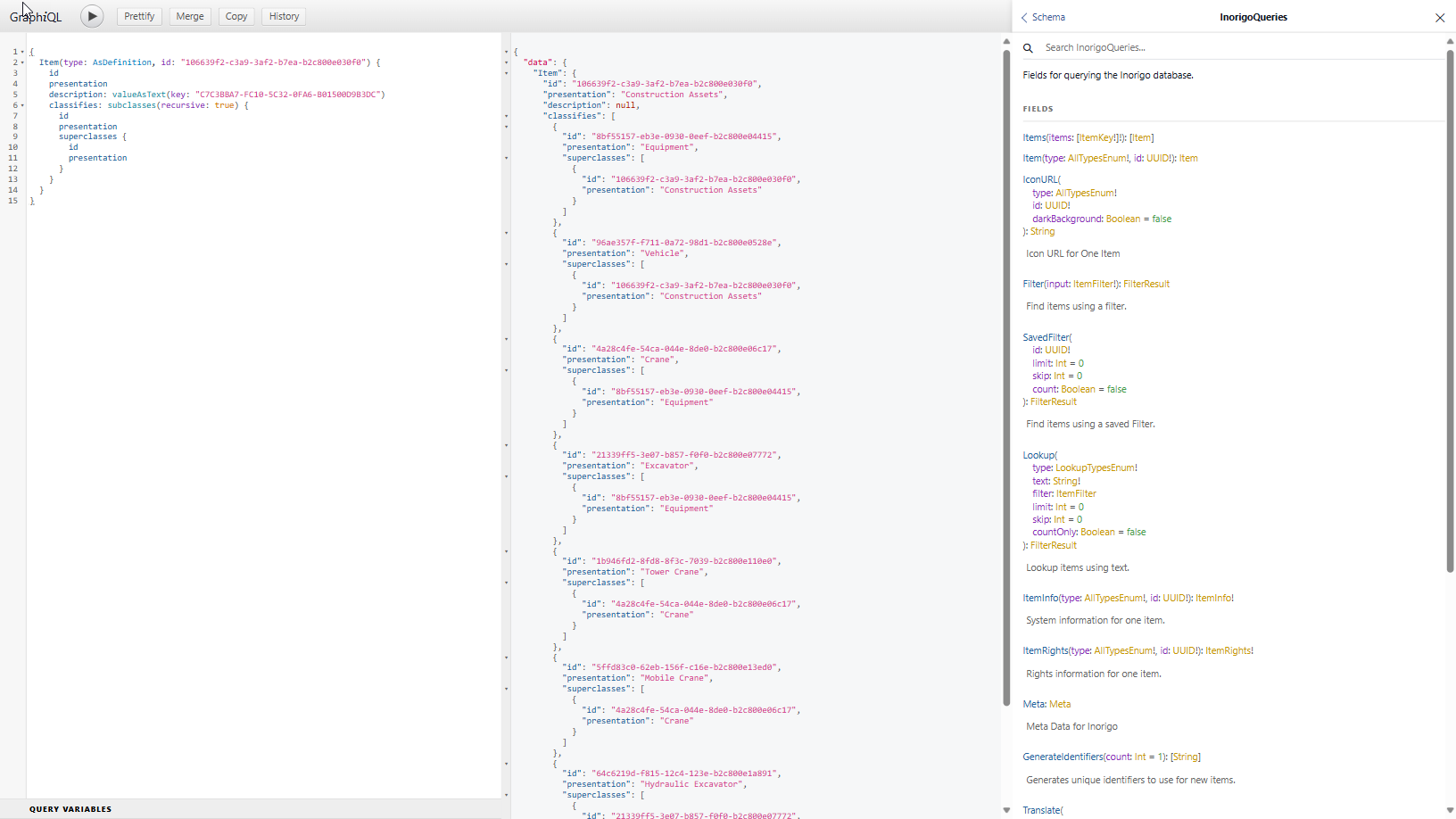
By using the inorigo GraphiQL syntax you can generate all items and their parents in one go like in the example below.
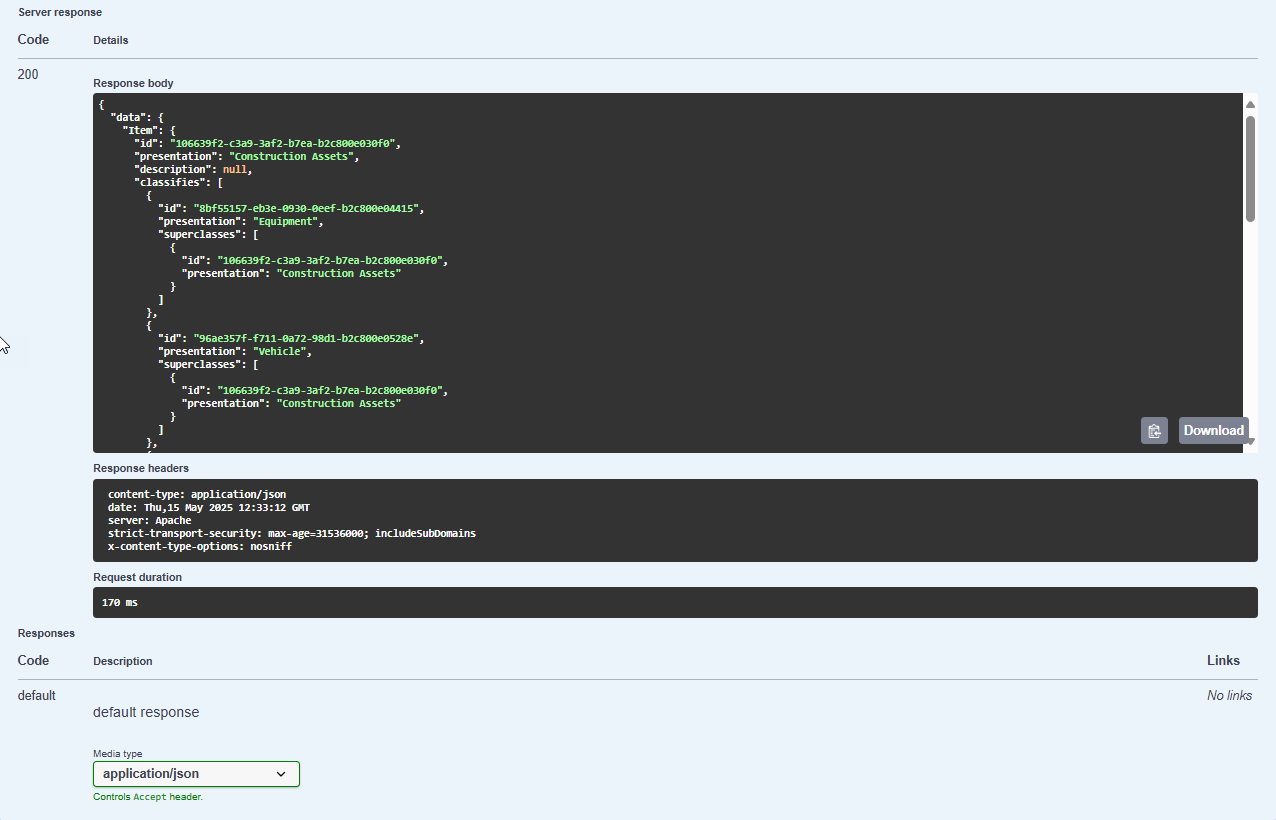
Besides being available in the platform as an Addon the GraphQL can be executed from the Webservice API.
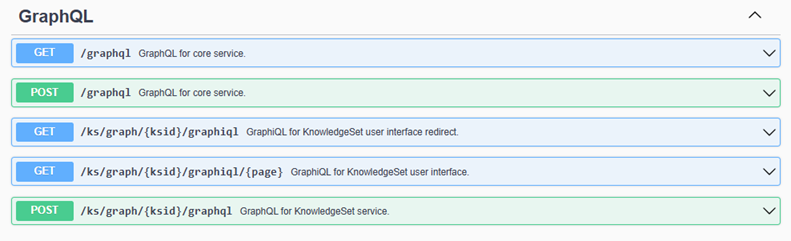
Executing the same query through the webservice:
Creating instances via GraphQL
To create an Instance Node of an inorigo Definition Node, please follow this step-by-step guide. All example code in the guide can be executed via the GrahiQL GUI included in inorigo. It can be accessed via the information icon ⓘ > GraphQL in the Toolbar.
Identifying attribute keys
You need to have the keys for the attributes you want to set values for before constructing the request to create a new Instance Node. To identify the key of the attributes you want to set values for, fetch the Definition Node via either the REST or GraphQL API. In GraphQL the query could look like this:
query {
  Item(type: AsDefinition id: "785d7ce6-4e47-d54e-8e7e-b3e600d49e74") {
    id
    definedAttributes {
      name
      key
      type
    }
  }
}
The response would include the attributes defined on that Definition Node:

{
  "data": {
    "Item": {
      "id": "785d7ce6-4e47-d54e-8e7e-b3e600d49e74",
      "definedAttributes": [
        {
          "name": "Datum",
          "key": "d3a31ff9-ab1a-4a48-8425-a3cafba5ba98",
          "type": "Date"
        },
        {
          "name": "Startdatum",
          "key": "71cac921-3095-4db9-ba4d-ab08377b663f",
          "type": "Date"
        },
        {
          "name": "Slutdatum",
          "key": "4e1d445d-46be-40a9-bee7-8767fb20d758",
          "type": "Date"
        }
      ]
    }
  }
}
Take note of the keys for the attributes you want to set values for.
The response would include the attributes defined on that Definition Node:
Now that we have the attribute keys, we can create the request that will create our new Instance Node. Using the example Definition Node above, the request to create a new Instance Node would look like this:

mutation {
  Create(
    items: [
      {
        type: AsInstance
        definition: {
          type: AsDefinition
          id: "785d7ce6-4e47-d54e-8e7e-b3e600d49e74"
        }
        values: [
          {
            key: "d3a31ff9-ab1a-4a48-8425-a3cafba5ba98"
            value: "2026-01-01T01:00:00+01:00"
          }
          {
            key: "71cac921-3095-4db9-ba4d-ab08377b663f"
            value: "2026-01-01T01:00:00+01:00"
          }
          {
            key: "4e1d445d-46be-40a9-bee7-8767fb20d758"
            value: "2026-01-12T01:00:00+01:00"
          }
        ]
      }
    ]
  ) {
    id
  }
}
The request specifies: - the type of the inorigo entity to create, in this case AsDefinition (Instance Node) - an Instance Node needs to be an instance of a specific Definition Node, this is specified through the definition element in the request - the values for each attribute that should be set. The attribute is specified using the key we retrieved in the first step
Take note of the keys for the attributes you want to set values for.
Create the Instance Node
Now that we have the attribute keys, we can create the request that will create our new Instance Node. Using the example Definition Node above, the request to create a new Instance Node would look like this:
mutation {
  Create(
    items: [
      {
        type: AsInstance
        definition: {
          type: AsDefinition
          id: "785d7ce6-4e47-d54e-8e7e-b3e600d49e74"
        }
        values: [
          {
            key: "d3a31ff9-ab1a-4a48-8425-a3cafba5ba98"
            value: "2026-01-01T01:00:00+01:00"
          }
          {
            key: "71cac921-3095-4db9-ba4d-ab08377b663f"
            value: "2026-01-01T01:00:00+01:00"
          }
          {
            key: "4e1d445d-46be-40a9-bee7-8767fb20d758"
            value: "2026-01-12T01:00:00+01:00"
          }
        ]
      }
    ]
  ) {
    id
  }
}
The request specifies: - the type of the inorigo entity to create, in this case AsDefinition (Instance Node) - an Instance Node needs to be an instance of a specific Definition Node, this is specified through the definition element in the request - the values for each attribute that should be set. The attribute is specified using the key we retrieved in the first step
Sending the request via Swagger UI / Postman / curl
If the request is to be sent via the Swagger UI GraphQL endpoint, Postman or curl (or some other client library or tool that doesn't handle this automatically), some tweaks to the code above needs to be performed. Here's the above code tweaked to be sent directly to the inorigo GraphQL API endpoint:
{"query": "mutation { Create(items: [{type: AsInstance definition: { type: AsDefinition id: \"785d7ce6-4e47-d54e-8e7e-b3e600d49e74\"} values: [ { key: \"definitionID\" value: \"785d7ce6-4e47-d54e-8e7e-b3e600d49e74\" type: \"AsDefinition\" } { key: \"d3a31ff9-ab1a-4a48-8425-a3cafba5ba98\" value: \"2026-01-01T01:00:00+01:00\"} { key: \"71cac921-3095-4db9-ba4d-ab08377b663f\" value: \"2026-01-01T01:00:00+01:00\" } { key: \"4e1d445d-46be-40a9-bee7-8767fb20d758\" value: \"2026-01-12T01:00:00+01:00\" } ] } ] ) { id }}"}
The steps needed are: - enclose the query string with {"query: "
© 2025 Inorigo AB. All rights reserved.